

Social Media sharing buttons are a great way to have your audience spread your message. You should definitely have them on your website, but you should also include them in your marketing emails. Learn how to create a customized tweet!
Step 1: Start with …
https://twitter.com/intent/tweet?text=
Step 2: Add your message
Separate each word with the plus sign “+”. Most punctuation will work, such as a question mark, period, and exclamation mark; however, the hashtag, percent, and ampersand symbols require other digits.
For the hashtag (#) use %23
For the percent (%) use %25
For the ampersand (&) use %26
For example, your url would look like this:
https://twitter.com/intent/tweet?text=Want+to+create+a+customized+‘Tweet+This’+link?+It’s+easy.+Check+out+http://goo.gl/P4i8j+%23techtip
Step 3: Hyperlink your url to text
In your marketing email, include a number of opportunities for readers to share your content.
Hyperlink the url you created to key words in your copy.
Example:
Share this tip with your friends! Tweet it!
You can also hyperlink the link url to an image, such as the Twitter logo.
Example:
Like what you’re reading? Share with friends! 
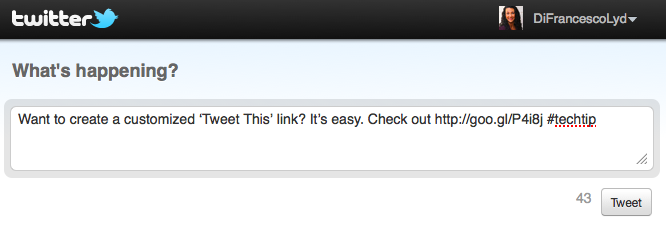
Voila! You’ve just made it really easy for your content to be shared. When someone clicks on the link your message will automatically populate in the box for them to post on Twitter, just like the picture above.
BONUS TIP: To share on Facebook, place the destination url after http://www.facebook.com/sharer/sharer.php?u=
Question: How can you use this tool to increase social media sharing of your content?
The post is a bit old but the methods listed above still work like a charm. Thanks Lydia!
Hi Caitlin,
You need to URL encode it. So, + would be %2B and & would be %26. For other symbols, check out this list: http://www.w3schools.com/tags/ref_urlencode.asp
Happy to help!
Lydia
Hi Lydia, if I’d like to use the + symbol as part of a tweet, how do I indicate that I want to use the actual symbol and not a second space? Thanks for any insight you may have.
Shogo,
Happy to hear it! I’m not sure what you are referring to when you say “status”.
Thanks Lydia, this was great, and I’m using your info all over my site now! Still trying to figure out what the difference is between the “intent” and “status” commands that precede the tweet. Any ideas?
Yes, it isn’t difficult to do it, but when you want to backtrack it to old posts, it can be a bit tiring. And since it will be done manually, there is a possibility that you might make a mistake which would go unnoticed for a long time.
BTW, Woo themes has something similar in the editor. But I will have to edit the template to replace the img with just a link.
Thanks Sunil. A plugin would be nice, but once you know the “formula” it’s not too bad. I also like the ability to control the message I want to use.
Great tip… I wish there was a plugin which would prepopulate the text and add the shortened URL…
Thanks Andy!
Great tips Lydia – especially for those looking to maximize the reach and effect of their messages. Andy